
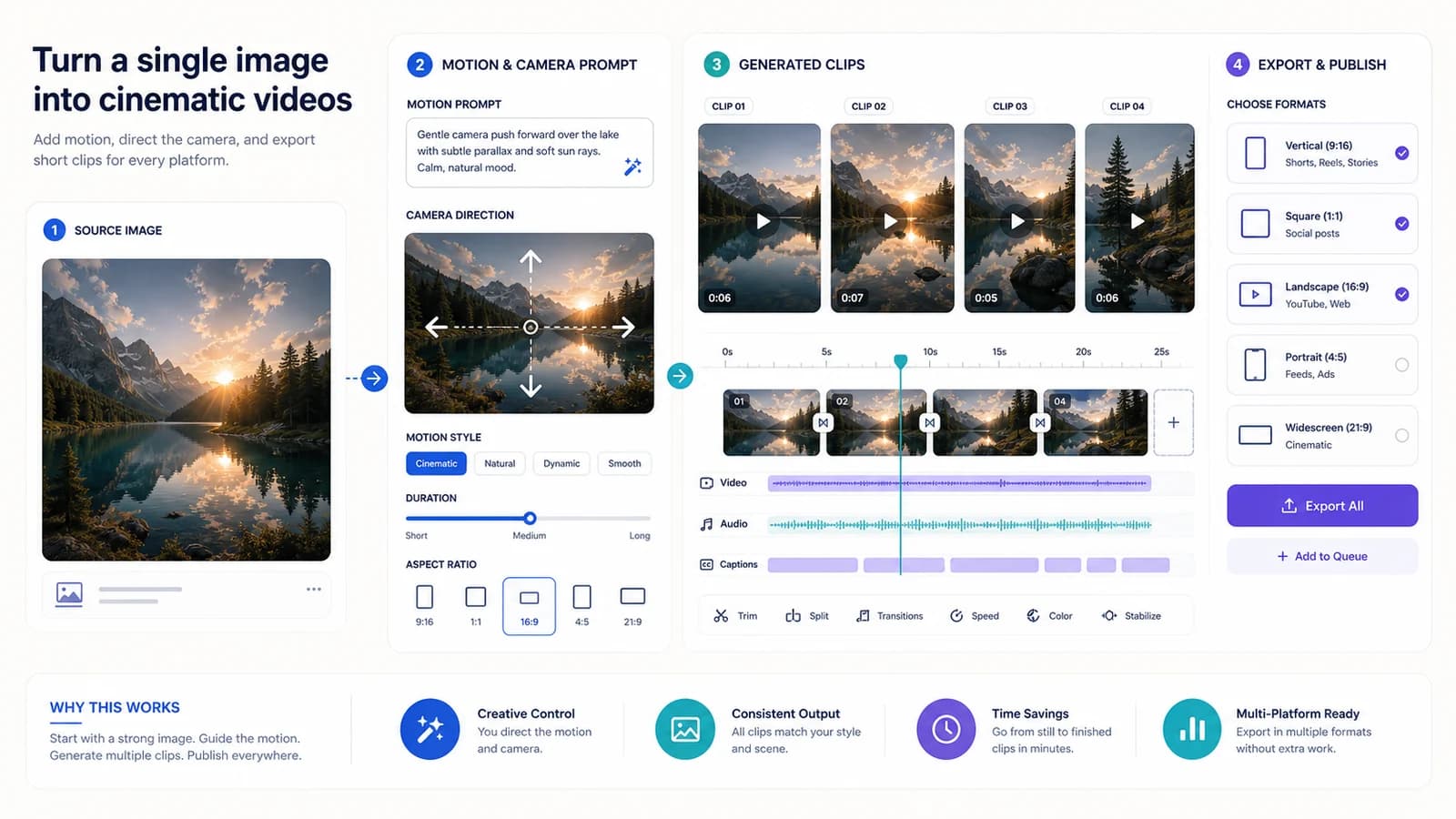
I ran image-to-video tools across a handful of portfolio projects and personal channels over the last few months. Most guides on this read like landing pages. This one is field notes — what the workflow actually looks like, where it breaks, and what 50 videos a month really costs.
One mistake almost everyone makes first. Let's kill it before anything else.
First, Two Things People Confuse — and It Costs Them
AI avatar tools and AI video generators are not the same job. People burn money learning this the hard way. An avatar tool like HeyGen or Synthesia produces a talking person reading your script. It's built for explainers, training, and faceless YouTube channels where a presenter carries the video (Synthesia, Product Overview). Feed it text, get a human-looking narrator out the other end.
AI video generation is a different category. Runway, Pika, Kling-style tools, and legacy Sora workflows turn a prompt or a still image into motion — B-roll, visual scenes, abstract movement. Checked June 16, 2026, Runway's current buyer path centers on Gen-4.5/Gen-4 rather than old Gen-3 Alpha pages. No presenter. Just motion from pixels.
Image-to-video lives inside that second category. You hand it a still, it animates the still. That's it.
Picking the wrong category is the single most common budget leak I see. Someone wants a talking spokesperson, buys render credits on a generation tool, and ends up fighting the software for weeks. Wrong tool. Different job.
Quick Verdict
Quick Verdict
Best for: creators who already own strong stills (Midjourney, DALL-E, product shots) and need motion clips
Not for: anyone needing a presenter reading a long script — buy an avatar tool instead
Biggest downside: render-credit pricing that escalates fast at volume
Rating: 7/10
Short answer: Worth it if you have good source images and produce visual B-roll. Skip it otherwise.
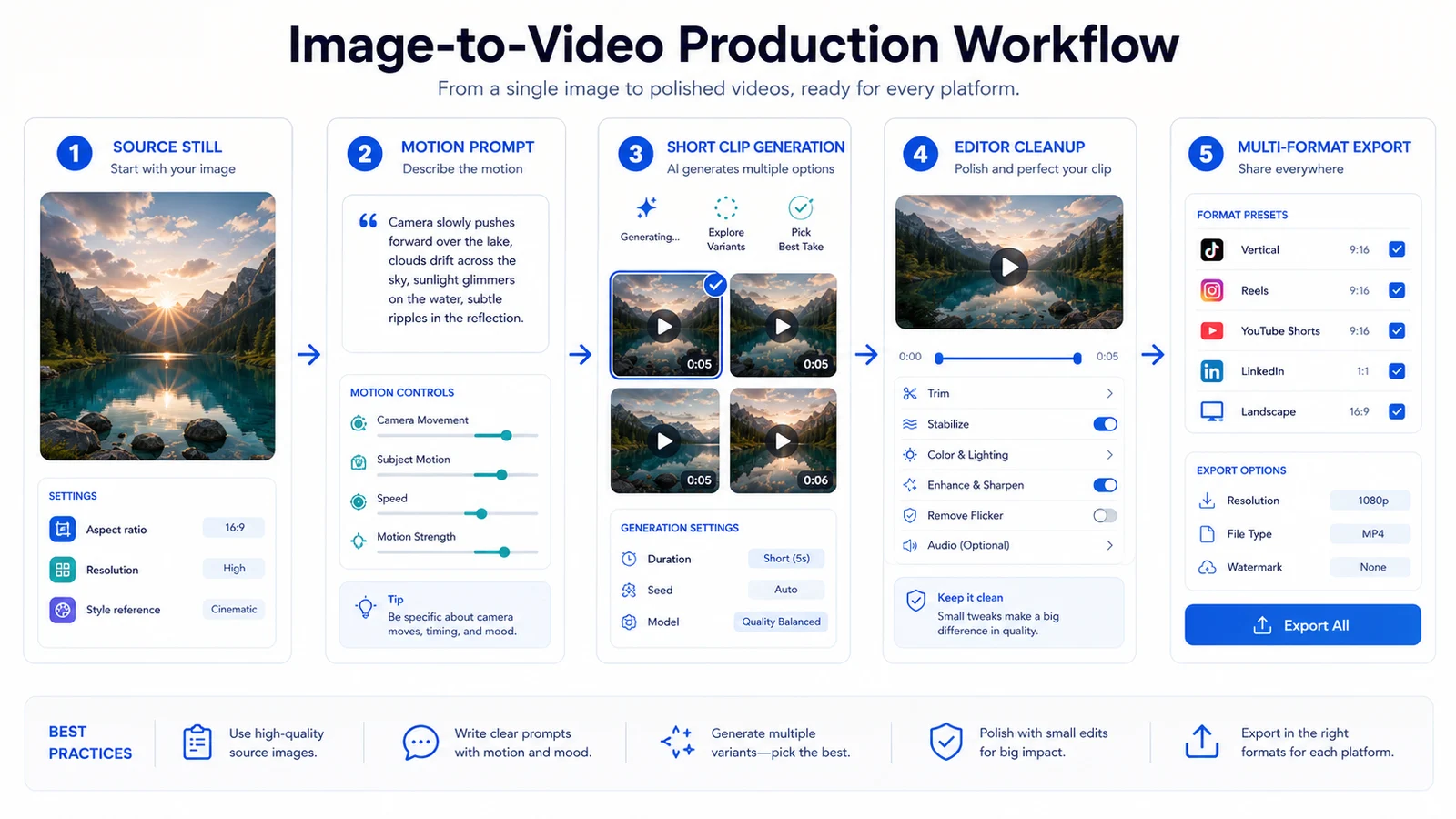
The workflow is simple, but the discipline matters: source still, motion prompt, short clip, edit, export.
The Workflow I Actually Use, Step by Step
Start with a clean still. An ai photo to video generator only animates what you give it — garbage in, garbage stays. A muddy, busy source image produces a muddy, busy clip.
Write a motion prompt, not a scene prompt. Describe the camera movement and the subject motion separately. "Slow dolly in, subject turns head left" beats "a cinematic dramatic scene." The model needs direction, not adjectives.
Generate short clips. Four to ten seconds. Don't try to capture a full scene in one render — longer renders are where things fall apart.
Stitch and color-correct in a real editor. I use CapCut for fast turns and Premiere when the output actually matters. Export one master, then cut it down for shorts, reels, and blog embeds.
Where it breaks in practice
Faces and hands distort on longer renders. Reliably. Anything past a few seconds and fingers start melting.
Motion prompts get ignored when the source image is busy — the model can't decide what to move, so it moves everything or nothing.
And re-rendering to fix one bad clip burns credits you already paid for. That's the part that stings.
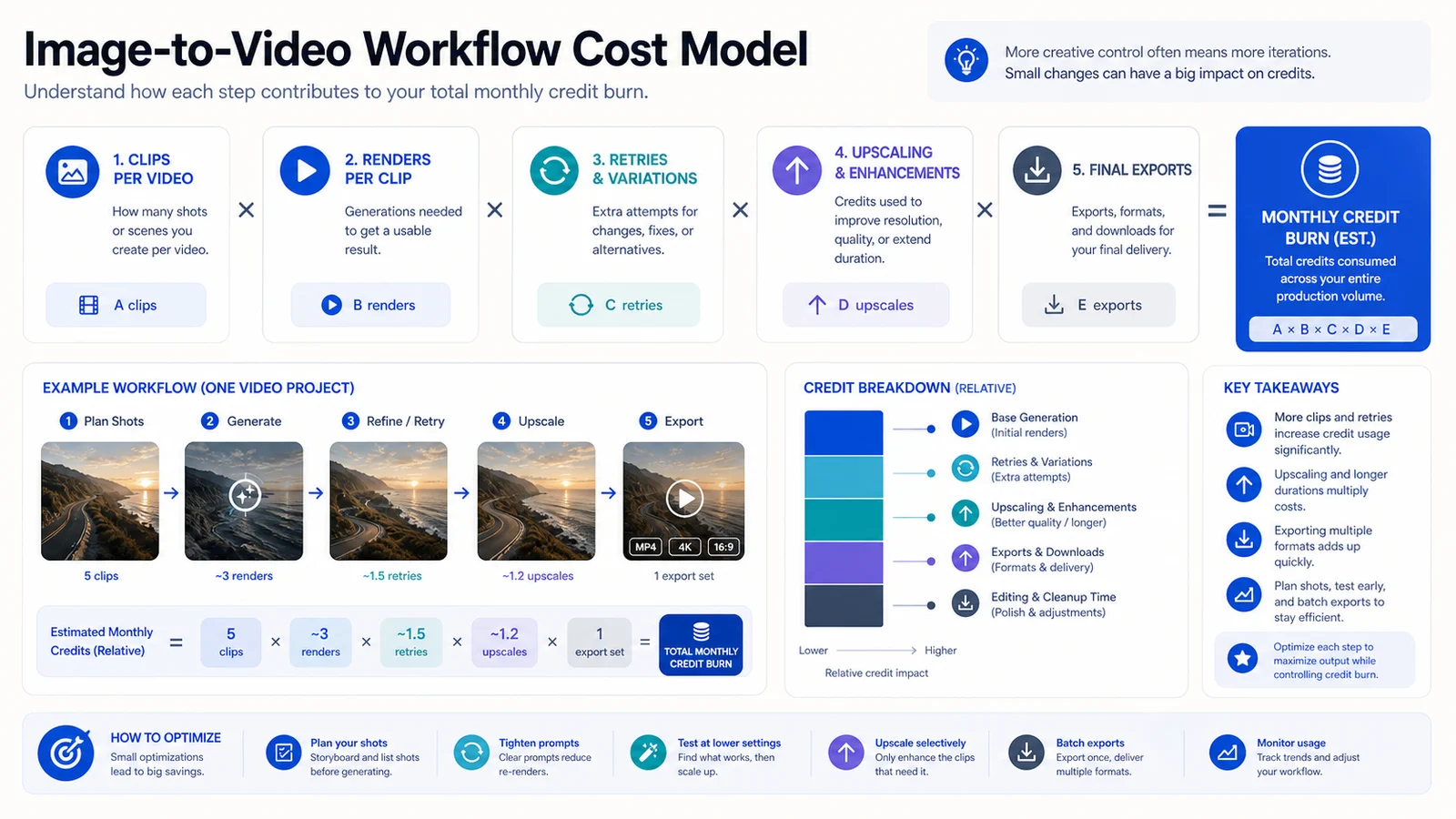
For a 50-video month, retries and upscales usually matter more than the headline subscription price.
What 50 Videos a Month Really Costs
Model the math on render minutes and credits, not the headline monthly price. The sticker number lies.
Here's the worked logic: clips per video × renders per clip × retries = your true credit burn. Say a video needs 5 clips, and realistically you retry each clip twice to get one good take. That's 15 renders for one finished video. Fifty videos a month? You're looking at roughly 750 renders, not 50.
The cost shows up in two places: retries and the urge to upscale everything to max resolution. Both quietly drain credits.
I haven't locked down the exact credit-to-second conversion for every tier — vendors change it and I'd rather flag that than fake precision. Check the current pricing before you commit.
Can You Do This Free? Mostly No, Sort Of Yes
A free ai image to video generator usually means a watermark, a queue, or a hard credit cap. Sometimes all three.
Runway's public free plan lists 125 one-time credits, which is enough to test the feel but not enough for a serious 50-video workflow. I did not complete a fresh official Kling pricing pass for this article, so treat Kling's free-tier details as vendor-page verification work before buying.
My honest call: free is fine for testing the look. Run your actual stills through it, see if the motion holds up, decide if the tool fits. For a 50-video pipeline it's useless. You'll blow the cap on day one and spend the rest of the month staring at a queue.
Kling vs Runway for Image-to-Video
Both take a still and animate it. The difference is motion control and consistency.
For most creators starting out, I'd pick Kling — longer, smoother motion with fewer obvious artifacts in my limited runs. Runway earns its place when you need tighter control over exactly how the camera and subject move. That's the minority case, but it's a real one.
Fair warning: I haven't run either at full 50-video scale, so treat the quality read as directional, not gospel.
Tool choice for image-to-video, checked June 16, 2026
| Criterion | Runway | Pika/Kling-style alternatives |
|---|---|---|
| Image input | Native still-to-video workflow | Native still-to-video varies by tool |
| Free tier | 125 one-time credits on Runway's public page | Verify current credits, watermark, and region limits |
| Pricing model | Credit-based by model usage | Credit/plan-based, tool-dependent |
| Best for | Tighter motion control and editor handoff | Lower-cost experimentation or stylized effects |
| Pros | Cons |
|---|---|
| Turns existing stills into usable motion clips without a camera or studio | Render-credit pricing escalates fast at 50+ videos/month |
| Fast turnaround on short B-roll compared to filming | Faces, hands, and long clips distort and force retries |
| Free tiers let you test the look before paying | Commercial license and output-ownership terms are often vague |
Repurposing One Render Into Five Formats
Export a 16:9 master, then reframe to 9:16 and 1:1 inside the editor. Never regenerate a clip just to change aspect ratio — AI video generation is expensive per second, and a reframe is free.
Cut your hooks for shorts and reels from that same master. One render, five outputs. CapCut and Premiere both handle reframe and crop without touching the original. For blog embeds, compress hard. Autoplay muted, keep it under a few MB, or your page speed tanks.
Copyright and Likeness — The Part Nobody Reads
Animating AI-generated stills sidesteps the avatar likeness problem, since there's no real person involved. It does not sidestep the training-data questions hanging over these models. That fight isn't settled.
Commercial use rights depend on the tool's license and your subscription tier. Runway publicly says users retain rights and can use generations commercially; Pika's public pricing/FAQ pages conflicted in my June 2026 check; Kling-style alternatives need their own current terms review before client use.
If your source is a real photo of a real person, likeness and consent rights still apply. AI in the pipeline doesn't erase that.
I'm not a lawyer. This is operator caution, not legal advice. Read the ToS before you ship anything client-facing.
Final Verdict: Who Should Use This, Who Should Skip
If you produce visual B-roll and own strong stills — Midjourney exports, product shots, branded scenes — an image to video ai generator earns its keep. Run Kling, test on your real images, scale from there. If you need a presenter reading a script, skip all of this. Buy HeyGen or Synthesia and stop fighting the wrong tool.
And if you're under roughly 10 videos a month, free tiers plus manual editing beat any paid plan. The credit math only justifies a subscription once volume climbs.
FAQ
What's the difference between an AI image to video generator and an AI avatar tool?▾
An image-to-video generator animates a still into motion clips. An avatar tool (HeyGen, Synthesia) creates a talking presenter from a script. Different jobs: use image-to-video for B-roll and visual scenes, avatars for explainers and training.
Is there a genuinely free AI image to video generator?▾
Runway offers limited one-time free credits; other image-to-video tools often add watermarks, queues, or hard caps. Fine for testing the look, not enough for a 50-video pipeline. Free runs out fast once you hit retries.
How much does it cost to make 50 videos a month?▾
It depends on render credits, not the headline price. Multiply clips per video by renders per clip by retries — retries are where the real cost hides. Model it on the vendor's current credit pricing before committing.
Can I use AI image-to-video output commercially?▾
Usually yes on paid tiers, but check the tool's license terms — they vary and some are vague on output ownership. If your source is a real person's photo, likeness and consent rights still apply. I'm not a lawyer; confirm the ToS.
Which is better for image-to-video, Kling or Runway?▾
For tighter motion control, Runway is the cleaner default. For lower-cost or stylized experiments, test Pika/Kling-style alternatives on your actual stills and verify current licensing before client work. Decide from output, not feature lists.